



A ping test shows us how stable your connection is and any issues you may be experiencing.
IMPORTANT: Please let the test run for 30 minutes. If you accidentally stop the test early, start again. The final summary is the key part.
Windows devices
Step 1: Open the Command Prompt
- Hold down the Windows key on your keyboard
- Press R
- A run box will appear
- Type cmd and click OK
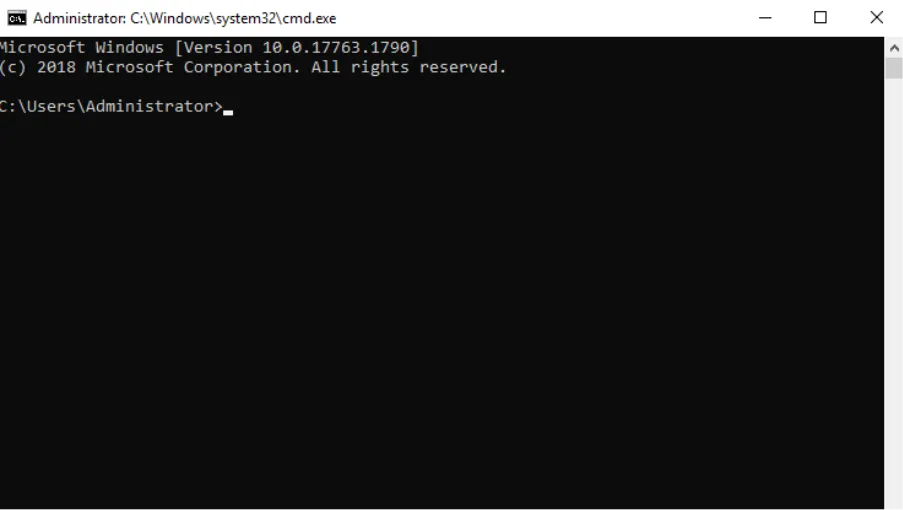
- A black window (Command Prompt) will open.
Step 2: Start the ping test
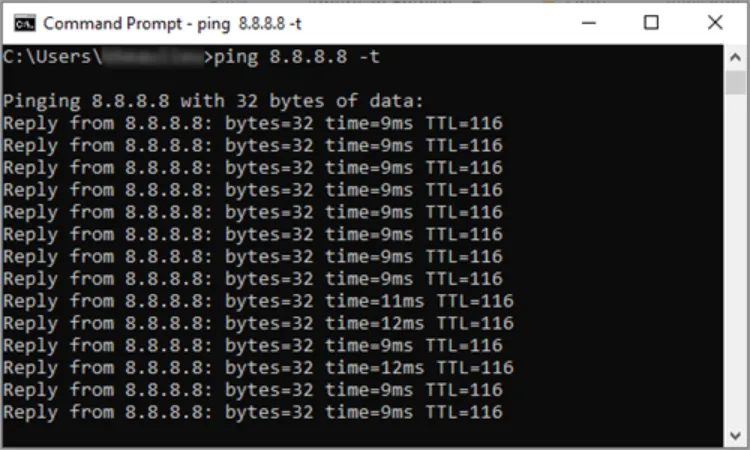
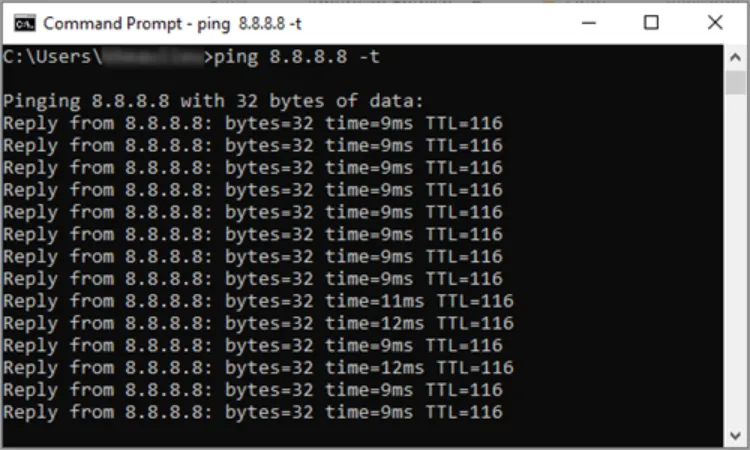
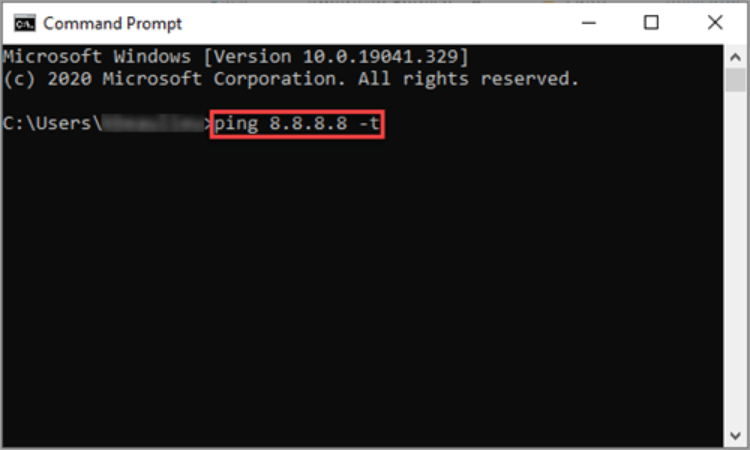
- In the black command prompt window, type: ping 8.8.8.8 -t
- Then press Enter.
- You’ll see lines of results appearing continuously. This means the test is running.
Step 3: Let it run
- Leave the test running for 30 minutes
- You can minimise the window, but don’t close it
Step 4: Stop the test
- Press CTRL + C on your keyboard
This will stop the test and show a summary at the bottom.
Step 5: Send us the results
- Take a screenshot of the bottom of the screen, showing the final results
- Upload or send the screenshot as instructed
MacBook devices
Step 1: Open Finder
- Click the Finder icon (the half-blue, half-grey face) in your Dock

Step 2: Open Terminal
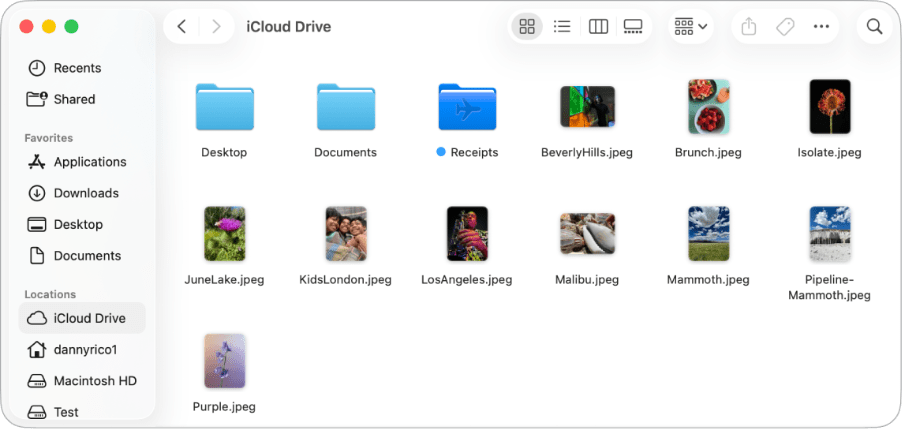
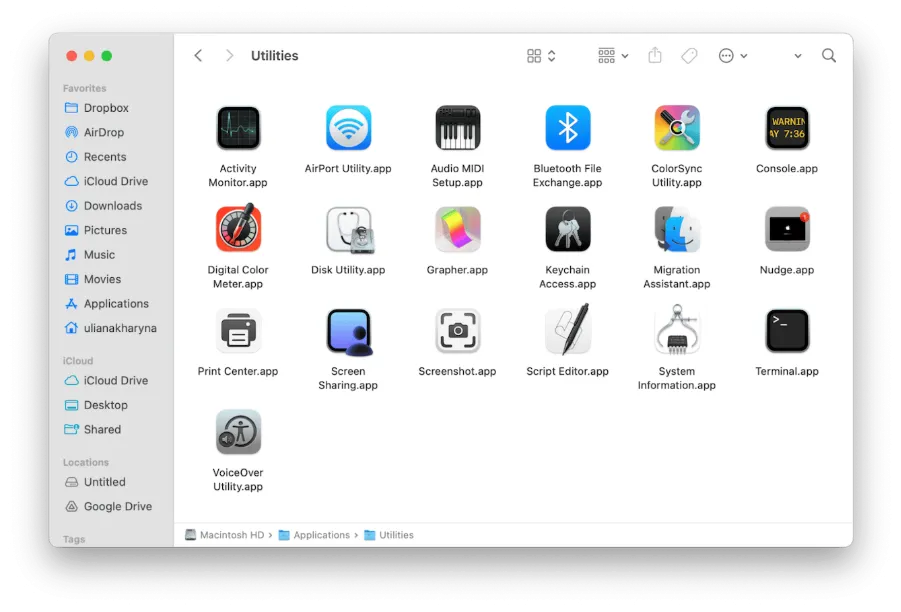
- Click Applications in the left sidebar (If you don’t see it, press Command + A in Finder)
- Open the Utilities folder
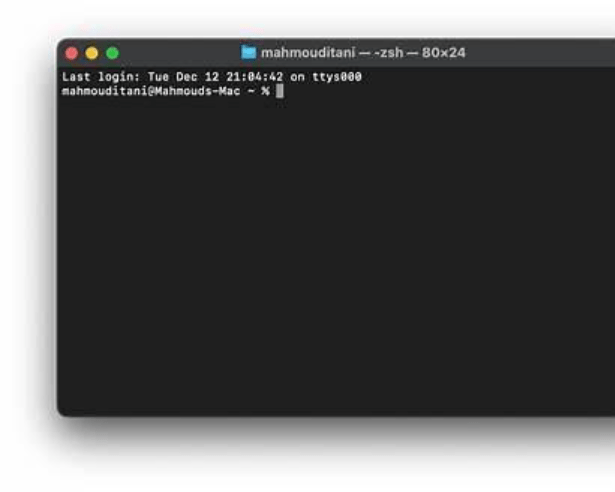
- Double-click Terminal
Step 3: Start the ping test
- In the terminal window, type: ping 8.8.8.8
- Then press Enter.
- You’ll see lines of results appearing. This means the test is running.
Step 4: Let it run
- Leave the test running for 30 minutes
- You can minimise the window, but don’t close it
Step 5: Stop the test
- Press CTRL + C
Step 6: Send us the results
- Take a screenshot after stopping the test
- Make sure the final results are visible
- Upload or send the screenshot as instructed
iPhone / iPad (iOS)
Step 1: Download a ping app
From the App Store, download one of the following (either is fine):
- Ping: Network Utility
- Network Analyzer
Step 2: Run the ping test
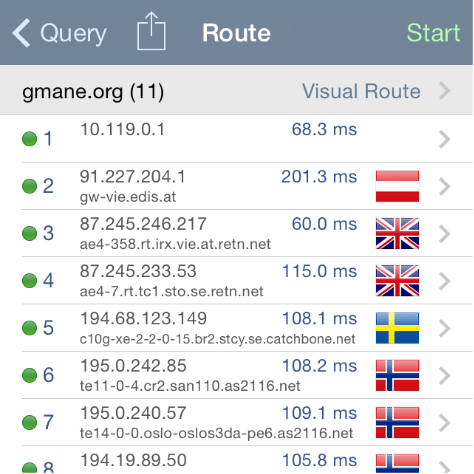
- Open the app
- Select Ping
- Enter the address: 8.8.8.8
- Start the test
Step 3: Let it run
- Let the test run for at least 30 minutes
- Keep the app open and your screen on
- Do not switch apps or lock the phone
Step 4: Send us the results
- Take a screenshot showing the results
- Upload or send the screenshot as instructed
Android devices
Step 1: Download a ping app
From the Play Store, download:
- PingTools Network Utilities
- Network Analyzer
Step 2: Run the ping test
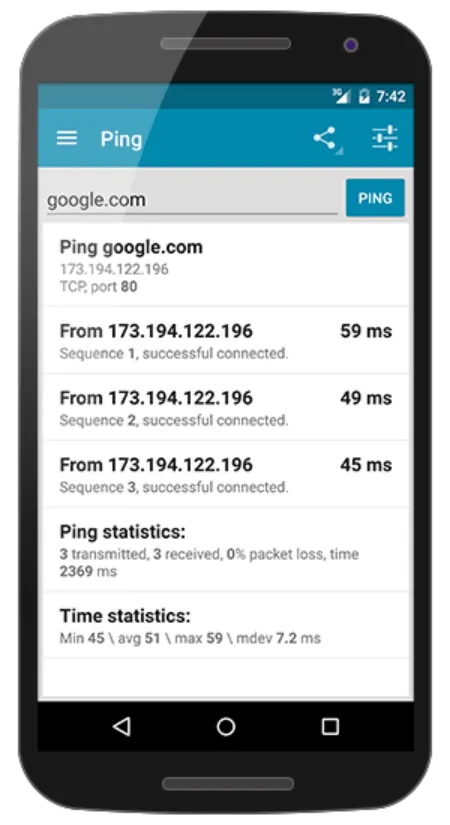
- Open the app
- Select Ping
- Enter: 8.8.8.8
- Start the test
Step 3: Let it run
- Run for 30 minutes
- Keep the screen awake
- Stay connected to Wi-Fi (not mobile data)
Step 4: Send us the results
- Take one clear screenshot
- Make sure latency, packet loss, and timestamps are visible