



A Wi-Fi scan helps us see what networks your device can detect and diagnose signal or interference issues.
Please follow the steps below for your device.
Apple devices (iPhone / iPad)
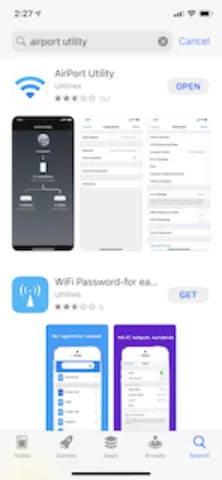
Step 1: Download the app
1- Open the App Store
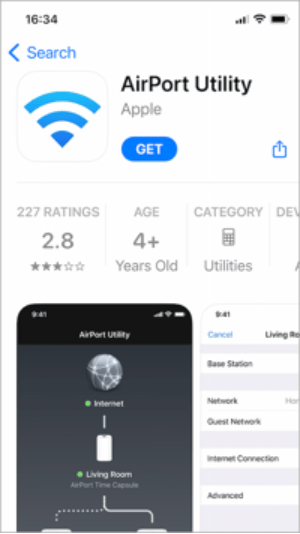
2 – Download AirPort Utility (by Apple)
Step 2: Turn on Wi-Fi scanner (IMPORTANT)
This step is required — the scan will not work without it.
- Open your phone Settings
- Scroll down to the list of apps
- Tap AirPort Utility
- Turn Wi-Fi Scanner ON
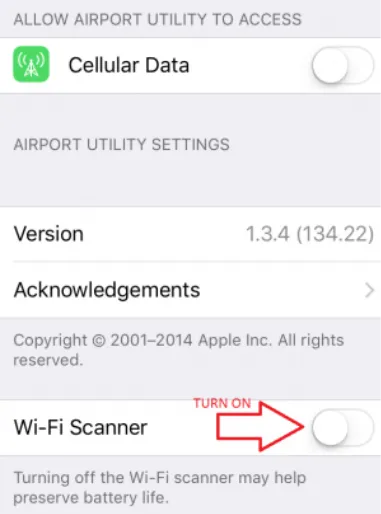
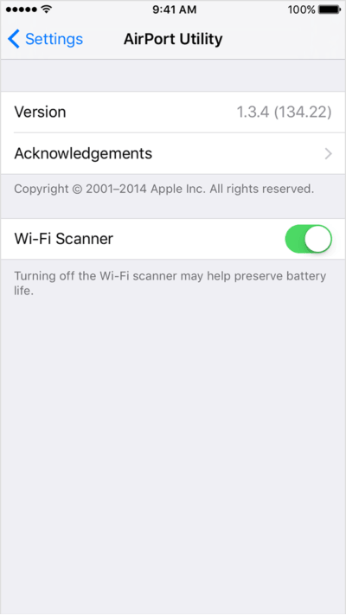
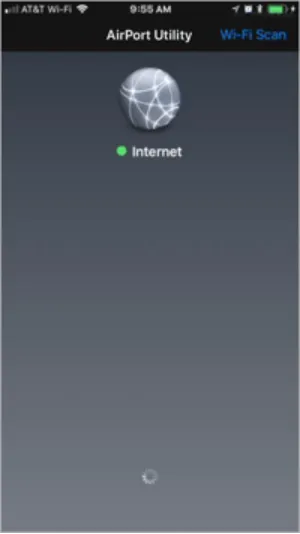
When this is enabled, you’ll see a blue “Wi-Fi Scan” button at the top of the app.
Step 3: Run the Wi-Fi scan
- Open AirPort Utility
- Tap Wi-Fi Scan
- Let the scan run
You’ll see a list of nearby Wi-Fi networks and technical details.
Step 4: Send us the results
- Take a screenshot of the first part of the list
- You only need the first few networks
- Upload or attach the screenshot as instructed
Android devices
Step 1: Download the app
- Open the Google Play Store
- Download WiFi Analyzer (Open Source) by VREM
Step 2: Run the scan
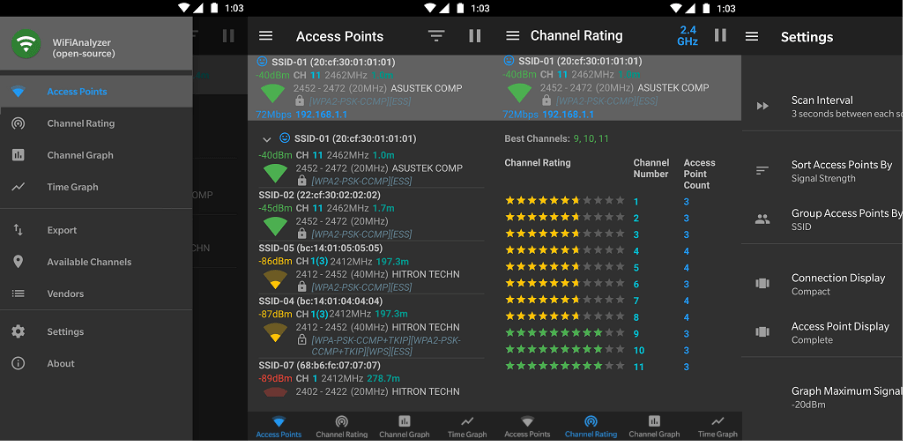
- Open the app
- You’ll automatically see a list of nearby Wi-Fi networks with signal details
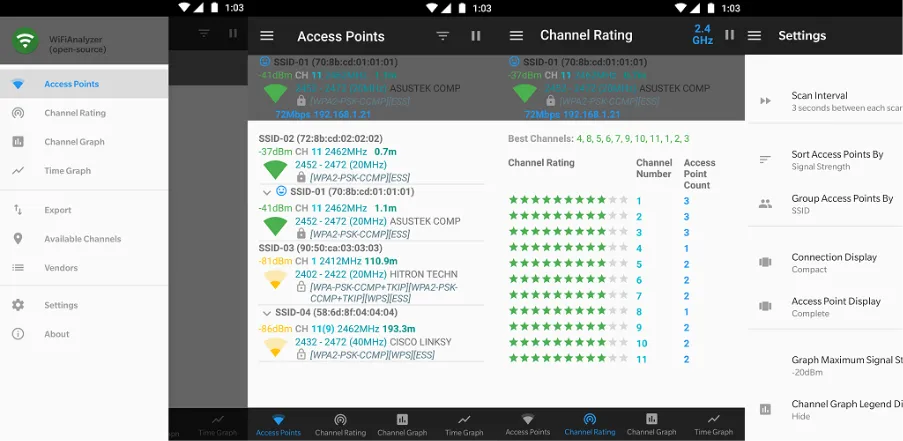
Step 3: Send us the results
- Take a screenshot of the top of the list
- One clear screenshot is enough
- Upload or attach the image as instructed
Step 4: Channel graph
- Click on the button that says channel Graph
- Take a screen shot
- Upload or attach the image as instructed